¶ Installing Java
This usually isn't required anymore. Prism is smart and can auto-detect the required Java version and download it for you in newer version of Prism Launcher. If you would like to manually install Java, please see the Manual Java Install section below
Manual Java install
Depending on your version of Minecraft, you'll have to install a different version of Java. Use the MSI download for whichever version you need.
1.20.5+ - You need Java 21, you can grab that here.
1.17 to 1.20.4 - You need Java 17, you can grab that here.
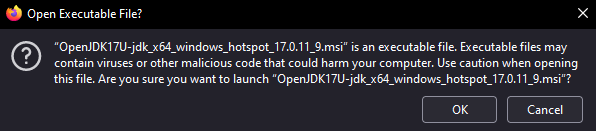
Run the EXE, if you get a prompt like the one below, just hit OK.
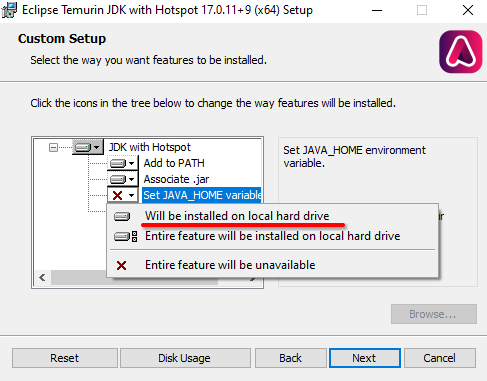
Press next on the installer and you should see the below page. Please make sure that the JAVA_HOME feature is set to be installed.
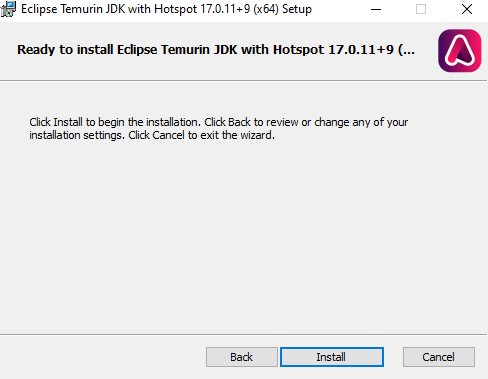
Now just click install!
Now you have Java installed and can move on to installing Prism Launcher!
¶ Installing Prism Launcher
Download the installer from Prism Launchers' Website and run it.
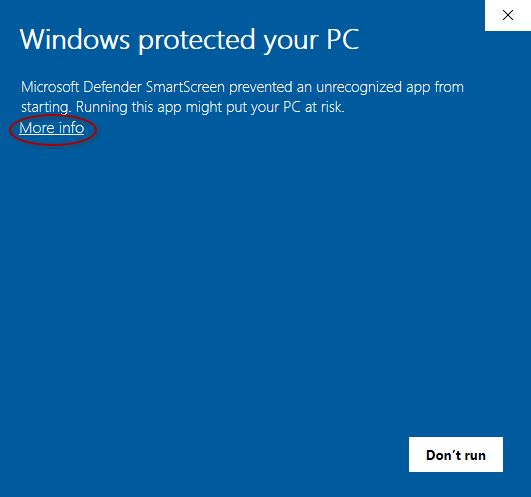
If you see a prompt saying something akin to "Windows protected your PC", click on "More Info" and then "Run Anyway"
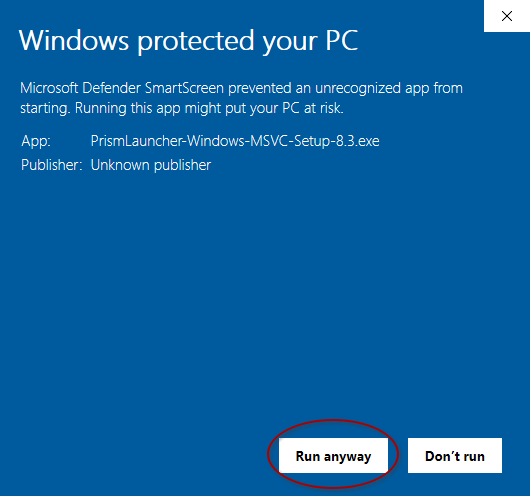
Continue through the installer, pressing "Next" on each screen, then finally "Finish".
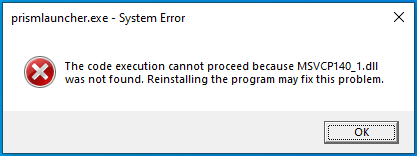
If after the installer you see an error like this, please install the required Microsoft library for Prism from this link
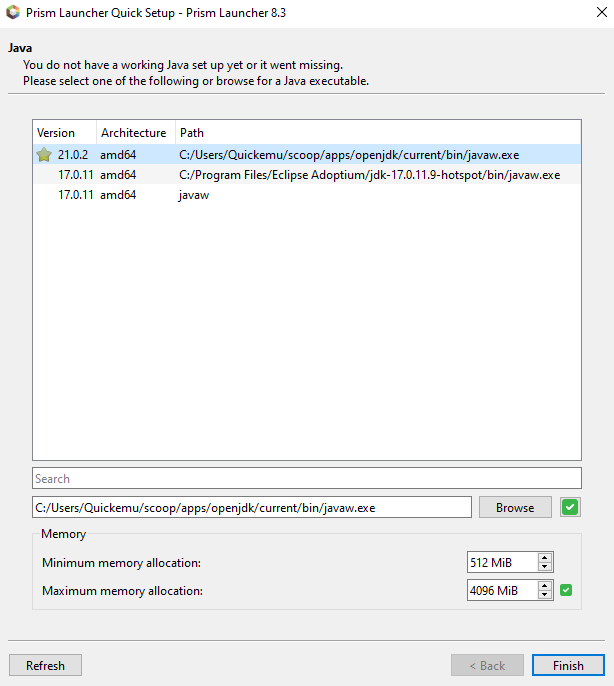
This will launch Prism into setup mode. Please select your language, then the next screen should be about selecting Java. Please select the correct Java version for your MC version (see the top of the page if you need a refresher).
If you do not see a Java installation after following the Installing Java steps, click "Refresh" in the bottom left, or restart Prism.
On the next screen if you would like dark mode, you can find that under "Widgets" > "Dark".
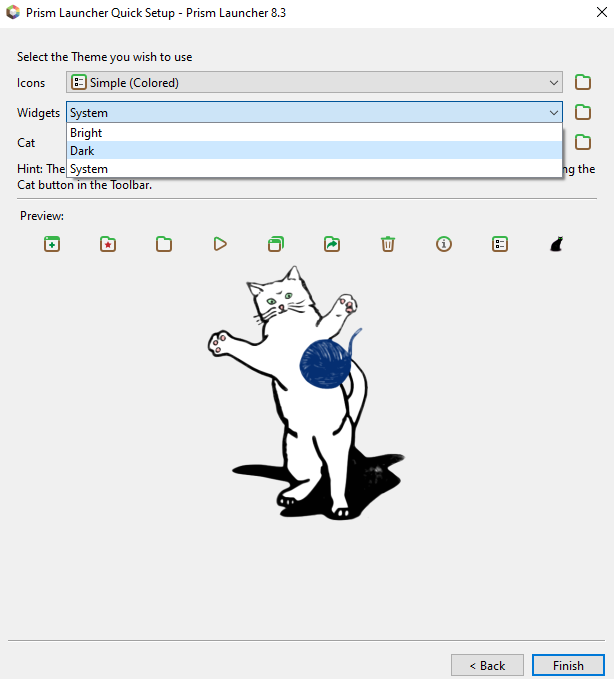
Now click "Finish".
¶ Adding a Modpack (Instance)
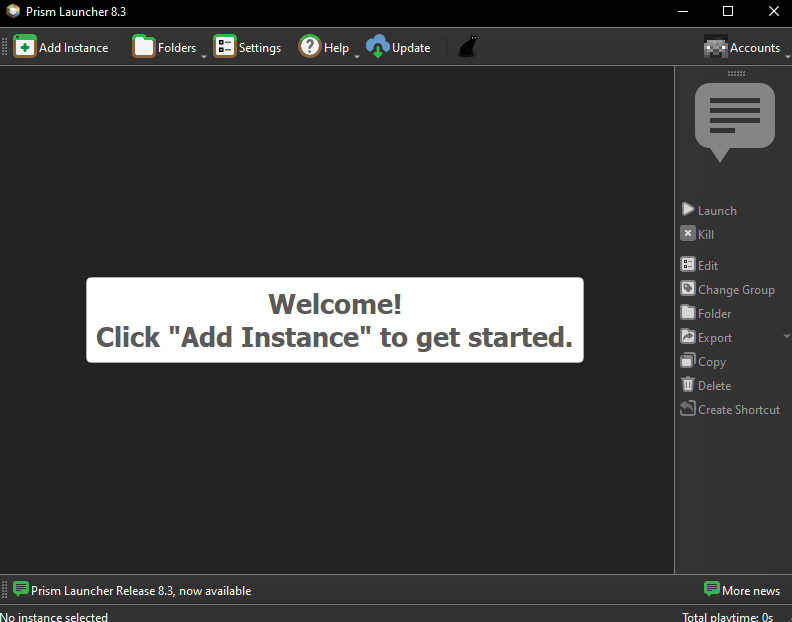
There should be an "Add Instance" button on the toolbar
Click the "Import" tab on the left-hand side and place in the URL for the modpack if you are using a custom modpack from me. Now click OK and it will download and install the modpack.
Here's a couple of commonly used links
https://media.redtrain.me/uploads/LoungeMC/LoungeMC.mrpack
https://media.redtrain.me/uploads/SandwichMC/SandwichMC.mrpack
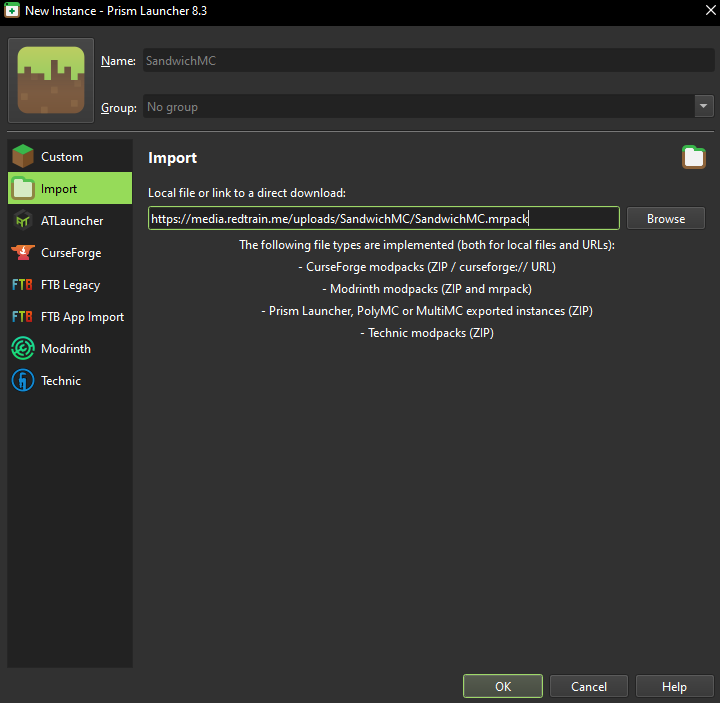
You're almost there now!
¶ Setting up an account
To actually play Minecraft with Prism, you'll need a Minecraft Java account.
Back at the main menu in the top-right of the toolbar, there will be a menu for accounts. Click it and hit "Manage Accounts"
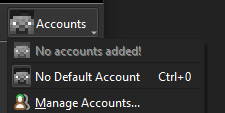
Click "Add Microsoft"

A browser window with a code will pop up (code omitted below).
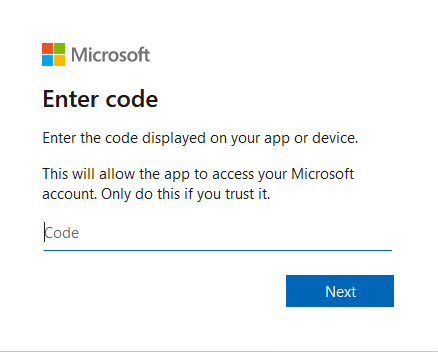
Press next and then sign-in with the Microsoft account that has Minecraft.
After signing in, you might have to grant Prism Launcher some permissions, go ahead and do that.
Once all that is done, you should see something like this
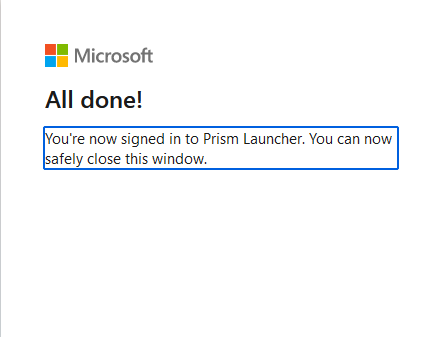
That's in, you've got your account added and an instance downloaded. You can now play Minecraft!
¶ Updating an instance
Updating doesn't really belong in this guide, you can find how to update a pack here